YouTube Videos & Playlists overview for your website

YouTube videos are everywhere online. They bring life, information, and entertainment to websites. But showing YouTube videos on your site is not just about pasting a link. You want a clean, responsive, and user-friendly way to display videos. That’s where YouTube video galleries, players, grids, and sliders come in. They help you organize and present videos in a way that fits your page style and audience needs.
In this post, I’ll walk you through the different ways to showcase YouTube videos and playlists on your website. I’ll also share how you can connect public YouTube channels or playlists without owning them. Plus, I’ll explain how to customize the look and controls of your video display. Finally, I’ll mention a handy tool that makes all this easier for Wix users.
Let’s dive in.
Different ways to display YouTube videos on your site
When you want to add YouTube videos to your website, you have several layout options. Each serves a different purpose and user experience.
Focused YouTube player
This layout highlights a single video. It’s perfect if you want visitors to watch one main video without distractions. The player can be responsive, adjusting to screen size.
Responsive YouTube video grid
A grid shows multiple videos in rows and columns. It’s clean and easy to scan. Visitors can pick which video to watch next. The grid adapts to different devices, so it looks good on phones and desktops.
Featured YouTube gallery
This layout highlights some videos more than others. For example, you can feature your newest or most popular videos with bigger thumbnails. It helps guide visitors to important content.
YouTube slider carousel
A slider lets visitors swipe or click through videos horizontally. It’s great for saving space and adding interactive navigation. Sliders can autoplay or be controlled by arrows and dots.
Choosing the right layout depends on your website’s style and goals. For example, a tutorial site might use a grid to show all lessons, while a product page might use a focused player for a demo video.
How to connect YouTube channels and playlists without owning them
One common challenge is showing videos from a YouTube channel or playlist you don’t own. Luckily, you can still display public content easily.
Connect by channel handle, username, URL, or channel ID
You don’t need to own the channel. Just use the public identifier to pull videos. This works for any public YouTube channel.
Show all channel videos or public playlists
You can display every video from a channel or select specific public playlists. This is useful for curating content from creators or brands you like.
Build custom playlists from video URLs or IDs
If you want to mix and match videos from different sources, you can create a custom playlist. Just add the video links or IDs you want to feature.
This flexibility means you can showcase tutorials, music videos, product demos, or any YouTube content relevant to your site visitors.

Design presets and deep customization options
A big part of making your YouTube video display look professional is design. You want it to match your site’s style and be easy to use.
Many tools offer ready-made design presets to get started quickly. Some popular presets include:
YouTube Clear Light
YouTube Clear Dark
Liquid Glass
Neon Cyberpunk
Holographic Chrome
Editorial Magazine
These presets change colors, typography, spacing, borders, and hover effects. You can pick one that fits your brand or mood.
Beyond presets, you can customize:
YouTube header style and text
Video card layout and size
Play button design and position
Aspect ratios for videos
Colors for backgrounds, borders, and text
Spacing between elements
Responsive behavior for mobile and desktop
This level of control helps you create a unique video gallery that feels part of your website, not just an add-on.
Playback, lightbox, and interaction controls for visitors
How visitors watch your videos matters. You want to offer a smooth and enjoyable experience.
Here are some playback and interaction options you can set:
Open videos on YouTube
Clicking a video takes visitors to YouTube’s site or app.
Show a large YouTube lightbox popup
Videos open in a popup overlay on your site, keeping visitors there.
Play videos inside the card frame
Videos play directly in the thumbnail or card without opening a new window.
Autoplay preview
Videos start playing silently when visible, giving a quick preview.
Player controls
Show or hide YouTube’s play, pause, volume, captions, fullscreen, and speed controls.
Loop and shuffle
Loop a video or shuffle playlist videos for continuous play.
Mobile playback options
Adjust how videos behave on phones and tablets.
Slider controls
Enable arrows, dots, autoplay, mousewheel, and keyboard navigation for sliders.
These options let you tailor the video experience to your audience’s preferences and your site’s goals.
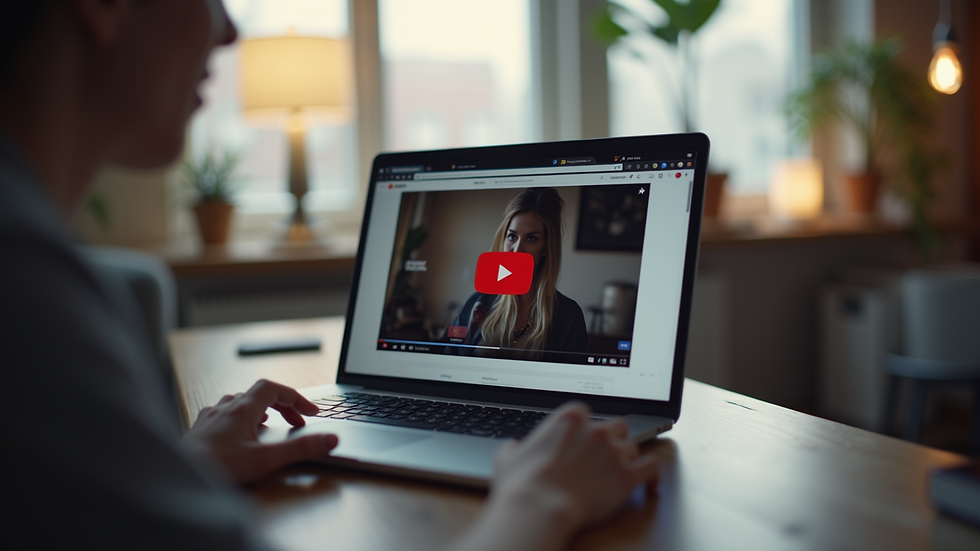
Using YouTube Videos & Playlists app for Wix websites
If you use Wix to build your site, the YouTube Videos & Playlists app by Vanyadoing is a great tool to add flexible YouTube video galleries and playlists.
This app lets you:
Connect any public YouTube channel by handle, username, URL, or ID
Show all channel videos or select public playlists
Build custom playlists from video URLs and IDs
Choose layouts like focused player, grid, featured gallery, or slider carousel
Customize design presets and fine-tune colors, typography, spacing, and more
Control playback options including lightbox, autoplay preview, player controls, and mobile behavior
You don’t need to own the YouTube channel to display its content. This makes it easy to showcase tutorials, music videos, courses, or product demos from any public source.
Using this app can save you time and give you a professional video display that fits your site’s style and user needs.
Practical tips for adding YouTube videos to your site
Here are some tips to get the most out of your YouTube video galleries:
Pick a layout that matches your content type and page design.
Use featured galleries to highlight important or new videos.
Customize colors and fonts to match your brand.
Enable lightbox playback to keep visitors on your site.
Use autoplay preview sparingly to avoid annoying users.
Test your video display on mobile devices to ensure responsiveness.
Update playlists regularly to keep content fresh.
Use custom playlists to mix videos from different channels.
These small steps improve user experience and keep visitors engaged longer.

YouTube videos add value and engagement to any website. With the right tools and settings, you can create a clean, responsive, and interactive video gallery or playlist player. Whether you want a focused player, a grid, a featured gallery, or a slider, you have options to fit your style.
Connecting public YouTube channels and playlists is easy and does not require ownership. You can also build custom playlists from any videos you choose.
For Wix users, the YouTube Videos & Playlists app by Vanyadoing offers a flexible and customizable solution. It helps you overcome digital challenges and achieve your unique online vision with advanced video display options.
Start exploring these layouts and controls today to make your website’s video content shine. Your visitors will appreciate the smooth experience and clear presentation.
Happy video sharing!


